Post-installation configuration
Installing additional software; Adding users; Time zone; Network services; Startup preferences; Configuring the mouse; Configuring X; Rebooting the new system.
In the last chapter we looked at the installation of the basic system, up to the point where it could be rebooted. It's barely possible that this could be enough. Almost certainly, though, you'll need to perform a number of further configuration steps before the system is useful In this chapter we roughly follow the final configuration menu, but there are a few exceptions. The most important things to do are:
- • Install additional software.
- • Create accounts for normal users.
- • Set up networking support.
- • Configure the system to start all the services you need.
- • Configure the X Window System and desktop.
In this chapter, we’ll concentrate on getting the system up and running as quickly as possible. Later on in the book we'll go into more detail about these topics.
At the end of the previous chapter, we had a menu asking whether we wanted to visit the 'last options" menu. If you answer YES, you get the configuration menu shown in Figure 6-1 . If you have rebooted the machine, log in as root and start sysinstall Then select Configure, which gets you into the same menu.
G. Lehey FreeBSD Operating System
I reeBSI) Conf i guration Menu
If you’ve already installed FreeBSD, you may use this menu to customize it somewhat to suit your particular configuration. Most importantly.
you can use the Packages utility to load extra "3rd party" software not provided in the base distributions.
R Exit
Distributions
Packages
Root Password
Fdisk
label
User Management Console
Time Zone
Media
Mouse
Networking
L v(+)
Exit this menu (returning to previous)
Install additional distribution sets
Install pre-packaged software for FreeBSD Set the system manager's password
The disk Slice (PC-style partition) Editor
The disk Label editor
Add user and group information
Customize system console behavior
Set which time zone you're in
Change the installation media type Configure your mouse
Configure additional network services
Cancel
Г Press Fl for more information on these options 1
Рис. 6.1. Configuration menu
As the markers under the word Networking indicate, this menu is larger than the window in which it is displayed. We'll look at some of the additional entries below. Only some of these entries are of interest in a normal install; we'll ignore the rest.
There may be some reasons to deviate from the sequence in this chapter. For example, if your CD-ROM is mounted on a different system, you may need to set up networking before installing additional software.
Installing additional software
The first item of interest is Packages. These are some of the ports in the Ports Collection, which we'll look at in more detail in Chapter 9 .
The Ports Collection contains a large quantity of software that you may want to install In fact, there's so much that just making up your mind what to install can be a complicated process: there are over 8,000 ports in the collection. Which ones are worth using? I recommend the following list:
• acroread is the Acrobat reader, a utility for reading and printing PDF files.
We look at it briefly on page 276.
- • bash is the shell recommended in this book. We'll look at it in more detail on page 113. Other popular shells are tcsh and csh, both in the base system
- • cdrecord is a utility to bum SCSI CD-Rs. We'll discuss it in chapter Chapter 13, Writing CD-Rs. You don't need it if you have an IDE CD-R drive.
- • Emacs is the GNU Emacs editor recommended in this book. We'll look at it on page 139. Other popular editors are vi (in the base system) and vim (in the Ports Collection).
- • fetchmail is a program for fetching mail from POP mailboxes. We look at it on page 504.
- • fvwm2 is a window manager that you may prefer to a full-blown desktop. We look at it on page 118.
- • galeon is a web browser. We’ll look at it briefly on page 418.
- • ghostscript is a PostScript interpreter. It can be used to display PostScript on an X display, or to print it out on a non-PostScript printer. We'll look at it on page 273.
- • gpg is an encryption program
- • gv is a utility that works with ghostscript to display PostScript on an X display. It allows magnification and paging, both of which ghostscript does not do easily. We'll look at it on page 273.
- • ispell is a spell check program
- • kde is the desktop environment recommended in this book. We'll look at it in more detail in Chapter 7, The tools of the trade.
- • mkisofc is a program to create CD-R images. We look at it in chapter Chapter 13 , Writing CD-Rs
- • mutt is the mail user agent (MUA, or mail reader) recommended in Chapter 26 , Electronic mail: clients.
- • Postfix is the mail transfer agent (MTA) recommended in chapter Chapter 27, Electronic mail: servers.
- • xtset is a utility to set the title of an xterm window. It is used by the .bashrc file installed with the instant-workstation package.
- • xv is a program to display images, in particular jpeg and gif.
Why do 1 recommend these particular ports? Simple: because I like them, and I use most of them myself. That doesn't mean they're the only choice, though. Others prefer the Gnome window manager to kde, or the pine or elm MUAs to mutt, or the vim editor to Emacs. This is the stuff of holy wars. See ссылка: http7/catb.org^~esr/jargon/html/Uftioly-wars.htmlfor more details.
G. Lehey FreeBSD Operating System
Instant workstation
The ports mentioned in the previous section are included in the misc/instant-workstation port, which installs typical software and configurations for a workstation and allows you to be productive right away. At a later point you may find that you prefer other software, in which case you can install it.
It's possible that the CD set you get will not include instant-workstation. That's not such a problem. Due to space restrictions, some CD distributions include instantworkstation-lite instead. If that's not there either, just install the individual ports from this list. You can also do this if you don't like the list of ports.
Changing the default shell for root
After installation, you may want to change the default shell for existing users to bash. If you have installed instant-workstation, you should copy the file /usr/lo-cal/share/dot.bashrc to root’s home directory and caH it .bashrc and .bash_profile. First, start
presto# cp /usr/local/share/dot.bashrc .bashrc
presto# In .bashrc .bash_profile
presto# bash
=== root@presto (/dev/ttyp2) ~ 1 -> chsh
The last command starts an editor with the following content:
#Changing user database information for root.
Login: root
Password:
Uid [#]: 0
Gid [# or name]: 0
Change [month day year]:
Expire [month day year]:
Class:
Home directory: /root
Shell: /bin/csh
Full Name: Charlie &
G. Lehey FreeBSD Operating System
Office Location:
Office Phone:
Home Phone:
Other information:
Change the Shell line to:
Shell: /usr/local/bin/bash
Note that the bash shell is in the directory /usr/local/bin; this is because it is not part of the base system The standard shells are in the directory /bin.
Adding users
A freshly installed FreeBSD system has a number of users, nearly all for system components. The only login user is root, and you shouldn't log in as root. Instead you should add at least one account for yourself. If you're transferring a master.passwd file from another system, you don't need to do anything now. Otherwise select this item and then the menu item User, and fill out the resulting menu like this:
G. Lehey FreeBSD Operating System
User and Group Management
|
Login ID: |
Add a new user |
||
|
UID: |
Group: |
Password: |
|
|
feed |
1001 |
fred |
|
|
Full name: Fred Bloggs |
- |
Member groups: heel,operator |
|
Home directory: Login shell:
/home/fred /usr/local/bin/bash
|
CANCEL |
Рис. 6.2. Adding a user
You should not need to enter the fields UID and Home directory: sysinstall does this for you. It's important to ensure that you are in group wheel so that you can use the su command to become root, and you need to be in group operator to use the shutdown command.
Don't bother to add more users at this stage; you can do it later. We’ll look at user management in Chapter 8 , on page 112.
Setting the root password
Next, select Root Password. We’ll talk about passwords more on page 144. Select this item to set the password in the normal manner.
Time zone
Next, select the entry time zone. The first entry asks you if the machine CMOS clock (Le. the hardware clock) is set to UTC (sometimes incorrectly called GMT, which is a British time zone). If you plan to run only FreeBSD or other UNIX-like operating systems on this machine, you should set the clock to UTC. If you intend to run other software that doesn't understand time zones, such as many Microsoft systems, you have to set the time to local time, which can cause problems with daylight savings time.
United States Time Zones
Select a zone which observes the same time as your locality.
Eastern Tii
- 2 Eastern Time - Michigan - most locations
- 3 Eastern Time - Louisville, Kentucky
- 4 Eastern Standard Time - Indiana - most locations
- 5 Eastern Standard Time - Indiana - Crawford County
- 6 Eastern Standard Time - Indiana - Starke County
- 7 Eastern Standard Time - Indiana - Switzerland County
- 8 Central Time
- 9 Central Time - Michigan - Wisconsin border
- 10 Mountain Time
- 11 Mountain Time - south Idaho & east Oregon
- 12 Mountain Time - Navajo
- 13 Mountain Standard Time - Arizona
- 14 Pacific Time
- 15 Alaska Time
- 16 Alaska Time - Alaska panhandle
L v(+)
ЗИ1ШИ Cancel
Рис. 6.3. Time zone select menu: USA
The next menu asks you to select a "region," which roughly corresponds with a continent. Assuming you are living in Austin, TX in the United States of America, you would select America -- North and South and then (after scrolling down) United States of America. The next menu then looks like this: Select Central Time and select Yes when the system asks you whether the abbreviation CST sounds reasonable.
This particular step is relatively cumbersome. You may find it easier to look in the
G. Lehey FreeBSD Operating System
directory /usr/share/zoneinfo after installation. There you find:
# cd /usr/share/zoneinfo/
# Is
Africa Australia Etc MET WET
America CET Europe MST posixrules
Antarctica CST6CDT Factory MST7MDT zone tab
Arctic EET GMT PST8EDT
Asia EST HST Pacific
Atlantic EST5EDT Indian SystemV
If you want to set the time zone to, say, Singapore, you could enter:
# cd Asia/
# Is
Aden
Almaty
Amman
Anadyr
Aqtau
Aqtobe
Chungking Jerusalem Novosibirsk Tehran Colombo
Dacca
Damascus
Dili
Dubai
Kabul Omsk Thimbu
Kamchatka Phnom_Penh Tokyo
Karachi Pyongyang Ujung_Pandang
Kashgar Qatar Ulaanbaatar
Katmandu Rangoon
Ashkhabad Dushanbe Krasnoyarsk Riyadh
Baghdad Bahrain Baku Bangkok
Beirut
Bishkek
Brunei Calcutta
# cp Singapore /etc/localtime
Gaza
Harbin Kuching
Hong_Kong Kuwait
Hovd Macao
Irkutsk Magadan
Istanbul Manila
Jakarta Muscat
Jayapura Nicosia
Kuala_Lumpur Saigon Samarkand Seoul
Shanghai Singapore Taipei Tashkent
Tbilisi
Ulan -Bator
Urumqi
Vientiane
Vladivostok
Yakutsk
Yekaterinburg
Yerevan
Note that the files in /usr/share/zoneinfo/Asia (and the other directories) represent specific towns, and these may not correspond with the town in which you are located. Choose one in the same country and time zone.
You can do this at any time on a running system.
Network services
Network Services Menu
You may have already configured one network device (and the other various hostname/gateway/name server parameters) in the process of installing FreeBSD. This menu allows you to configure other aspects of your system’s network configuration.
|
«< X Exit |
|
E 1 Interfaces |
|
[ ] AMD |
|
TXT AND 1 lags |
|
E ] Anon FTP |
|
T ] Gateway |
|
[ ] inetd |
|
E T NFS client |
|
E ] N1 S server |
|
[ ] Ntpdate |
|
t ] PCNFSD |
|
[ J portmap |
|
E ] Routed |
|
E 1 Rwhod |
|
3 E fcgftTtti |
|
tXJ |
|
EX! TCP Extensions |
Exit this menu (returning to previous)
Configure additional network interfaces
This machine wants to run the automounter service
Set flags to AMD service (if enabled)
This machine wishes to allow anonymous FTP.
This machine will route packets between interfaces
This machine wants to run the inet daemon
This machine will be an NFS client
This machine will be an NFS server
Select a clock-synchronization server
Run authentication server for clients with PC-NFS.
This machine wants to run the portmapper daemon
Select routing daemon (default: routed)
This machine wants to run the rwho daemon
This machine wants to run the sendaai1 daei
This machine wants to run the ssh daemon Allow RFC1323 and RFC1644 TCP extensions?
10K
Cancel
Рис. 6.4. Network services menu
The next step is to configure your networking equipment. Figure 6-4 shows the Network Services Menu. There are a number of ways to get to this menu:
- • If you're running the recommended Custom installation, you'll get it automatically after the end of the installation.
- • If you're running the Standard and Express installations, you don't get it at all: after setting up your network interlaces, sysinstall presents you with individual items from the Network Services Menu instead.
- • If you're setting up after rebooting, or if you missed it during installation, select Configure from the main menu and then Networking.
The first step should always be to set up the network interfaces, so this is where you find yourself if you are performing a Standard or Express installation.
Setting up network interface
Figure 6-5 shows the network setup menu. On a standard 80x25 display it requires scrolling to see the entire menu. If you installed via FTP or NFS, you will already have set up your network interfaces, and sysinstall won't ask the questions again. The only real network board on this list is xlO, the Ethernet board. The others are standard hardware that can also be used as network interfaces. Don't try to set up PPP here; there's more to PPP configuration than sysinstall can handle. We'll look at PPP configuration in Chapter 20 .
Network interface information required
If you are using PPP over a serial device, as opposed to a direct ethernet connection, then you may first need to dial your Internet Service Provider using the ppp utility we provide for that purpose. If you’re using SLIP over a serial device then the expectation is that you have a HARDWIRED connection.
You can also install over a parallel port using a special "laplink” cable to another machine running a fairly recent (2.OR or later) version of FreeBSD.
|3C0M 3c90x / 3c90xB PCI ethernet can
Parallel Port IP (PLIP) peer connection slO SLIP interface on device /dev/cuaaO (CONI) pppO PPP interface on device /dev/cuaaO (COMI) slO SLIP interface on device /dev/cuaal (COM2) pppO PPP interface on device /dev/cuaal (COM2)
Cancel
Г Press F1 to read network configuration manual 1
Рис. 6.5. Network setup menu
In our case, we choose the Ethernet board. The next menu asks us to set the internet parameters. Figure 6-6 shows the network configuration menu after filling in the values. Specify the fully qualified local host name; when you tab to the Domain: field, the domain is filled in automatically. The names and addresses correspond to the example network that we look at in Chapter 16, on page 294. We have chosen to call this machine presto, and the domain is example .org. In other words, the full name of the machine is presto.example.org. It's IP address is223.147.37.2. In his configuration, all access to the outside world goes via gw. example . org, which has the IP address 223.147.37.5. The name server is located on the same host, presto . example .org. The name server isn't running when this information is needed, so we specify all addresses in numeric form.
G. Lehey FreeBSD Operating System
What happens if you don't have a domain name? If you're connecting to the global Internet, you should go out and get one—see page 318. But in the meantime, don't fake it. Just leave the fields empty. If you're not connecting to the Internet, of course, it doesn't make much difference what name you choose.

|
Host: presto.example.org | |
Network Configuration Domain: example.org | |
||
|
IPv4 Gateway: 223.147.37.5 ] |
Name server: 223.147.37.2 |
||
|
Configuration for Interface xlO IPv4 Address: Netmask: 223.147.37.2l j 255.255.255.0 |
|||
|
Extra options to ifconfig: |
|||
CANCEL
Рис. 6.6. Network configuration menu
As is usual for a class C network, the net mask is255.255.255.0. You don't need to fill in this information—if you leave this field without filling it in, sysinstal] inserts it for you. Normally, as in this case, you wouldn't need any additional options to if conf ig.
Other network options
It's up to you to decide what other network options you would like to use. None of the following are essential, and none need to be done right now, but you may possibly find some of the following interesting:
- • inetd allows connections to your system from outside. We'll look at it in more detail on page 448. Although it's very useful, it's also a security risk if it's configured incorrectly. If you don't want to accept any connections from outside, you can disable inetd and significantly reduce possible security exposures.
- • NFS client. If you want to mount NFS file systems located on other machines, select this box. An X appears in the box, but nothing further happens. See Chapters 24 and 25 for further details of NFS.
- • NFS server. If you want to allow other systems to mount file systems located on this machine, select this box. You get a prompt asking you to create the file /etc/exports, which describes the conditions under which other systems can mount the file systems on this machine. You must enter the editor, but there is no need to change anything at this point. We'll look at /etc/exports in more detail on page 463.
- • ntpdate and ntpd are programs that automatically set the system time from time servers located on the Internet. See page 156 for more details. If you wish, you can select the server at this point.
- • rwhod broadcasts information about the status of the systems on the network. You can use the ruptime program to find the uptime of all systems running rwhod, and rwho to find who is running on these systems. On a normal-sized display, you need to scroll the menu down to find this option.
- • You don't need to select s shd: it's already selected for you. See page 453 for further details of ssh and sshd.
You don't need to specify any of the remaining configuration options during configuration. See the online handbook for further details.
Startup preferences
The next step of interest is the Startup submenu, which allows you to choose settings that take effect whenever you start the machine. See Chapter 29 for details of the startup files.
Startup Services Menu
This menu allows you to configure various aspects of your system's startup configuration. Use [SPACE] or [ENTER] to select items, and [TAB! to move to the buttons. Select Exit to leave this menu.
|
3 |
|
|
[ ] |
APH |
|
[ ] |
usbd |
|
[ ] |
usbd flags |
|
[X] |
startup dirs |
|
[ ] |
named |
|
[ ] |
named flags |
|
[ ] |
nis client |
|
[X] |
nis domainnamc |
|
[ ] |
nis server |
|
[ ] |
accounting |
|
[ ] |
Ipd |
|
[X] |
linux |
|
[X] |
SCO |
|
[ ] |
SVR4 |
|
[X] |
quotas |
Exit this menu (returnii
Auto- power management services (typically laptops) Enable USB daemon (detect USB attach / detach) Set
default flags to usbd (if enabled)
Set the list of dirs to look for startup scripts Run a local name server on this host Set default flags to named (if enabled) This host wishes to be an NIS client. Set NIS domainname (if enabled) This host wishes to be an NIS server.
This host wishes to run process accounting. This host has a printer and wants to run Ipd.
This host wants to be able to run linux binaries.
This host wants to be able to run IBCS2 binaries.
This host wants to be able to run SVR4 binaries.
This host wishes to check quotas on startup.
Cancel
Рис. 6.7. Startup configuration menu The most important ones are:
- • Select АРМ if you're running a laptop. It enables you to power the system down in suspend to RAM or suspend to disk mode, preserving the currently running system, and to resume execution at a later date.
- • If you have USB peripherals, select usbd to enable the usbd daemon, which recognizes when USB devices are added or removed.
- • named starts a name daemon. Use this if you're connecting to the Internet at all, even if you don't have a DNS configuration: the default configuration is a caching name server, which makes name resolution faster. Just select the box; you don't need to do anything else. We'll look at named in Chapter 21
- • Select Ipd, the line printer daemon, if you have a printer connected to the machine. We'll look at Ipd in Chapter 15 .
- • Select Linux if you intend to run Linux binaries. This is almost certainly the case, and by default the box is already ticked for you.
- • Select SVR4 and SCO if you intend to run UNIX System V.4 (SVR4) or SCO OpenDesktop or OpenServer (SCO) binaries respectively.
FreeBSD detects PS/2 mice at boot time only, so the mouse must be plugged in when you boot. If not, you will not be able to use it. To configure, select Mouse from the configuration menu. The menu in Figure 6-8 appears.
Please configure your souse
You can cut and paste text in the text console by running the mouse daemon. Specify a port and a protocol type of your mouse and enable the mouse daemon. If you don’t want this feature, select 4 to disable the daemon.
Once you’ve enabled the mouse daemon, you can specify "/dev/sysmouse" as your mouse device and "SysMouse" or "MouseSystems" as mouse protocol when running the X configuration utility (see Configuration menu) .
X Fx i t Exit this menu (returning to previous)
^Hlcst and run the mouse daemoi
- 3 Type Select mouse protocol type
- 4 Port Select mouse port
- 5 Flags Set additional flags
- 6 Disable Disable the mouse daemon
Cancel
Рис. 6.8. Mouse menu
With a modem PS/2 mouse, you don't need to do any configuration at all You just enable the mouse daemon or moused. Select the menu item Enable: you have the chance to move the mouse and note that the cursor follows. The keys don't work in this menu: select Yes and exit the menu. That's all you need to do.
If you're running a seria I mouse, choose the item Select mouse port and set it to correspond with the port you have; if you have an unusual protocol, you may also need to set it with the Type menu. For even more exotic connections, read the man page for moused and set the appropriate parameters.
Configuring X
You should have installed X along with the rest of the system—see page 75. If you haven't, install the package xll/XFree86. In this section, we'll look at what you need to do to get X up and running.
X configuration has changed a lot in the course of time, and it's still changing. The current method of configuring X uses a program called x/86c/g, which is still under development, and it shows a few strangeness’s. Quite possibly the version you get wifi not behave identically with the following description. The differences should be relatively clear, however.

Рис. 6.9. xf86cfg main menu
The configuration is stored in a file called XF86Config, thhough the directory has changed several times in the last few years. It used to be in /etc/Xll/XF86Config or
/etc/XF86Config, but the current preferred place is /usr/XHR6/lib/Xll/XF86Config.The server looks for the configuration file in multiple places, so if you're upgrading from an earlier version, make sure you remove any old configuration files. We'll look at the contents of the file in detail in Chapter 28 . In this section, we'll just look at how to generate a usable configuration.
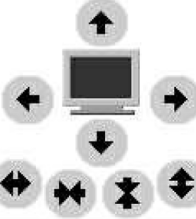
From the configuration menu, select XFree86 and then xf 8 6cf g. There is a brief delay while x f 8 6 c f g creates an initial configuration file, then you see the main menu of Figure 6-9. This application runs without knowing what the hardware is, so the rendering is pretty basic. The window on the left shows the layout of the hardware, and the window on the right is available in case your mouse isn't working. Select the individual components with the mouse or the numeric keypad. For example, to configure the mouse, select the image at top left:

Add new nouse
Configure nouse(s)
Рис. 6.10. xf86cfg mouse menu
In all likelihood that won't be necessary. The configuration file that xfB6cfg has already created may be sufficient, so you could just exit and save the file. You'll probably want to change some things, though. In the following, we'll go through the more likely changes you may want to make.
Configuring the keyboard
You can select a number of options for the keyboard, including alternative key layouts. You probably won't need to change anything here.
Identifier : fgeyboardO
Xkb rules: Э xfree86|
Keyboard nodel: ? Generic 101-key PC|
Keyboard layout: English|
Xkb variant: Э|
Xkb options: В|
_________________ None
? Group Shift/Lock behavior _ ijii n—|-i ? Third level choosers
_ ? Control Key Position
l|||l||lll|l|l|||l||lll|l| ? Use keyboard LED to show
II I 1 ll_ II I 1 D CapsLock key behavior
I ll^i I I III I I ?Rlt/Nin key behavior
Apply changes
<< »| Ok | Cancel
Рис. 6.11. xf86cfg keyboard menu
Describing the monitor
Probably the most important thing you need to change are the definitions for the monitor and the display card. Some modem monitors and most AGP display cards supply the information, but older devices do not. In this example we'l] configure a Hitachi CM813U monitor, which does not identify itself to x/86cfg. Select the monitor image at the top right of the window, then Configure Monitor (s). You see:
Identifier: |0onitorO
Horizontal sync |[]
Standard VGA, 640x480 0 GO Hz Super VGA, 800x600 0 56 Hz 1024x768 0 87 Hz inU (no 800x600) 1024x768 0 87 Hz inU, 800x600 0 56 Hz 800x600 0 60 Hz, 640x480 0 72 Hz 1024x768 0 60 Hz, 800x600 0 72 Hz High Frequency SVGA, 1024x768 0 70 Hz
Monitor that can do 1280x1024 0 60 Hz
Monitor that can do 1280x1024 0 74 Hz
Monitor that can do 1280x1024 0 76 Hz
Vertical sync Q
50 - 70 50 - 90 50 - 100 40 - 150 |
Select card connected to nonitor
? CardO
« » 0k Cancel
Рис. 6.12.
xf86cfg doesn't know anything about the monitor, so it assumes that it can only display standard VGA resolutions at 640x480. The important parameters to change are the horizontal and vertical frequencies. You can select one of the listed possibilities, but unless you don't know your's monitor specifications, you should set exacdy the frequencies it can do. In this case, the monitor supports horizontal frequencies from 31 kHz to 115 kHz and vertical frequencies from 50 Hz to 160 Hz, so that's what we enter. At the same time, we change the identifier to indicate the name of the monitor:
Identifier: (Hitachi CM813U[]
Horizontal sync |31-115[]
Standard VGA, 640x480 0 GO Hz Super VGA, 800x600 0 5G Hz 1024x768 0 87 Hz int. Monitor that can do 1280x1024 0 60 Hz Monitor that can do 1280x1024 0 74 Hz Monitor that can do 1280x1024 0 76 Hz Vertical sync j50-160| 50 - 70 50 - 90 50 - 100 40 - 150 | Select card connected to nonitor ? CardO Hext » 0k Cancel Рис. 6.13. xfB6cfg monitor menu Select OK to return to the previous menu. Configuring the display card xf86cfg recognizes most modem display cards, including probably all AGP cards, so you probably don't need to do anything additional to configure the display card. If you find that the resultant configuration file doesn't know about your card, you'll have to select the card symbol at the top of the screen. Even ii the card has been recognized, you get this display: Identifier: |f|ardO Card nodel filter || ARK Logic ark2000nt Driver В nga________________ BusiD |0CI:1:O:O < < B&ck | » Ok Cancel Рис. 6.14. The only indication you have that xf86cfg has recognized the card (here a Matrox G200) is that it has selected mga for the driver name. If you need to change it, scroll down the list until you find the card: Identifier : J^ardO Card nodel filter |fjatrox MGR G200 PCI (ngc Intel i815 Intel i830M Matrox Matrox Matrox MGR MGR MGR G100 G100 G200 PCI (ngaglOO PCI) PCI (ngaglOO) PCI (ngag200 PCI) Matrox MGR G200 PCI (ngag200) Matrox Matrox Matrox Matrox Matrox Matrox MGR G200 PCI (ngagdOO) ngalOGdsg nga20G4w nga2164w nga2164u RGP ngag550 Neonagic neo2070 Neonagic neo2090 Driver ? nga BusiD |0ci:i:O:O << .Back » Ok Cancel Рис. 6.15. xfB6cfg card select menu Selecting display resolution The display resolution is defined by Mode Lines, which we'll look at in detail on page 513. The names relate to the resolution they offer. By default, xf86cfg only gives you 640x480, so you'll certainly want to add more. First, select the field at the top left of the screen: Q Conf igure Layout Expert Mode Configure Layout Configure Screen Configure Modeline Configure RccessX Рис. 6.16. xf86cfg configuration selection From this menu, select Conf igure Mo de Line. You see: « В 640x480 @ 60 Hz | » 3 :8*0 |Ruto Rpply Restore Update Test HSyncStart: 656 VSyncStart: 490 HSyncEnd: 752 VSyncEnd: 492 HTotal: 800 VTotal: 525 Flags: -hsync -vsync Pixel Clock (MHz): 25*20 izonta1 Sync (kHz): 31*50 Vertical Sync 60*00 Her Rdd node to ? MonitorO as: §40x480060 ? Latjmst @Free86 Configured Help Quit Рис. 6.17. xf86cfg mode line menu If you pass the cursor over the image of the screen, you'll see this warning: MRRH1HG Using the controls here nay danage your nonitor*. You can safely skip this section of the configuration process* Press ESC if your nonitor goes out of sync* Auto Rpply Restore Update Test Рис. 6.18. xf86cfgmode line warning Take it seriously. We’ll look at this issue again in Chapter 28 on page 510. For an initial setup, you shouldn't use this interface. Instead, select Add standard G. Lehey VESA mode at the top. We get another menu: Э Configure Nodeline| Expert Node [ ? Add standard VESA node to current screen || 640x350 0 85Hz (VESA) hsync: 37.9kHz 640x400 8 85Hz (VESA) hsync: 37.9kHz 720x400 @ 85Hz (VESA) hsync: 37.9kHz 640x480 @ 60Hz (Industry standard) hsync: 3J 640x480 0 72Hz (VESA) hsync: 37.9kHz 640x480 0 75Hz (VESA) hsync: 37.5kHz 640x480 0 85Hz (VESA) hsync: 43.3kHz 800x600 0 56Hz (VESA) hsync: 35.2kHz 800x600 0 60Hz (VESA) hsync: 37.9kHz 800x600 0 72Hz (VESA) hsync: 48.1kHz 800x600 0 75Hz (VESA) hsync: 46.9kHz 800x600 0 85Hz (VESA) hsync: 53.7kHz 1024x768i 0 43Hz (industry standard) hsync: 1024x768 0 60Hz (VESA) hsync: 48.4kHz 1024x768 0 70Hz (VESA) hsync: 56.5kHz 1024x768 0 75Hz (VESA) hsync: 60.0kHz 1024x768 0 85Hz (VESA) hsync: 68.7kHz Horizontal Sync (kHz): 31.50 Vertical Sync (Hz): 60.00 Add node to ? NonitorO |as: [§40x480060 Q Layout | |@Free86 Configured I Help Quit Рис. 6.19. xf86cfg VESA mode lines Select the resolutions you want with the highest frequency that your hardware can handle. In this case, you might select 1024x768 @ 85 Hz, because it's still well within the range of the monitor. Answer yes to the question of whether you want to add it. You can select as many resolutions as you want, but the ModeLine window does not show them. You can also use the ModeLine window to tune the display, but it's easier with another program, xvidtune.We'll look at those details in Chapter 28 . Finally, select Quit at the bottom right of the display. You get this window: Рис. 6.20. xf86cfg quit When you answer Yes, you get a similar question asking whether you want to save the keyboard definition. Once you've done that, you're finished. Desktop configuration Next, select Desktop from the Configuration menu. You get this menu: Please select the default X desktop to use. By default. XFree86 comes with a fairly vanilla desktop which is based around the twm(l) window manager and does not offer much in the way of features. It does have the advantage of being a standard part of X so you don't need to load anything extra in order to use it. If. however, you have access to a reasonably full packages collection on your installation media, you can choose any one of the following desktops as alternatives. X Exit KIM Exit this menu (returning to previous) ЯЗЯПВЯЯт The К Deskt GNOME + Sawfish window manager. GNOME + The E window manager The Afterstep window manager The Windowmaker window manager The fvwm window manager Cancel Рис. 6.21. Desktop select menu Which one do you install? You have the choice. If you know what you want, use it. There are many more window managers than shown here, so if you don't see what you're looking for, check the category xll-wm in the Ports Collection. The select menu gives you the most popular ones: Gnome, Afterstep, Enlightenment, KDE, Window maker and fwm2. In this book, we'll consider the KDE desktop and the fvwm2 window manager. KDE is comfortable, but it requires a lot of resources. Gnome is similar in size to KDE. By contrast, fvwm2 is much faster, but it requires a fair amount of configuration. We'll look at KDE and fvwm2 in Chapter 7. Additional X configuration At this point, we're nearly done. A few things remain to be done: Configuring xdm To enable xdm, edit the file /etc/t/ys. By default it contains the following lines: ttyv8 '7usr/XllR6/bin/xdm -nodaemon" xterm off secure Using an editor, change the text of f to on: ttyv8 7usr/XllR6/bin/xdm -nodaemon" xterm on secure If you do this from a running system, send a HUP signal to init to cause it to reread the configuration file and start xdm # kill-1 1 This causes an xdm screen to appear on /dev/ttyv8. You can switch to it with Alt-F9. User X configuration If you're starting X manually with startx, create a file .xinitrc in your home directory. This file contains commands that are executed when X starts. Select the G. Lehey FreeBSD Operating System line that corresponds to your window manager or desktop from the following list, and put it in .xinitrc: Startkde for kde exec gnome-session for Gnome fvwm2 for fvwm2 If you're using xdm, you put the same content in the file .xsession in your home directory. Rebooting the new system When you get this for, you should have a functional system. If you're still installing from CD-ROM, you reboot by exiting sysinstall If you have already rebooted, you exit sysinstall and reboot with: # shutdown -r now Don't just press the reset button or turn the power off. That can cause data loss. We'll look at this issue in more detail on page 541. G. Lehey FreeBSD Operating System